Resynchronizing Database Keys
The DBS Resync Keys option is used to submit a list of database keys to be resynchronized on the replicated service.
The Resync option triggers the replicated service to read the specified primary service database keys and change its records to match accordingly. When the resynchronization is complete a success summary is listed in the lower pane.
Note: The ReplValidator utility is only available to compare DBS-type services (ACS, APPS, AUD, BSS, DDS, ELS, ELSALM, FAC, GNS, GRP, MSS, NOTE, PNT, TRS, and VHS). See the note about validating the VHS.
To Resync Records
- Highlight the record in which you are interested in the lower pane of the utility’s main screen.
- Or select Tools > DBS Resync Keys or click
 (DBS Resync Keys) on the toolbar to open the Resync Records dialog box.
 - Select the database key(s) to be resynchronized by highlighting them in the Log Viewer pane or enter a key manually and click Add Key.
- Click Resync to trigger the replicated service to bring its database records in sync with the primary database.
- When the resync action is complete the resynchronization success will be displayed in the lower pane.
- Click Close to exit the Resync Records dialog box.
|
Click the thumbnail to see |
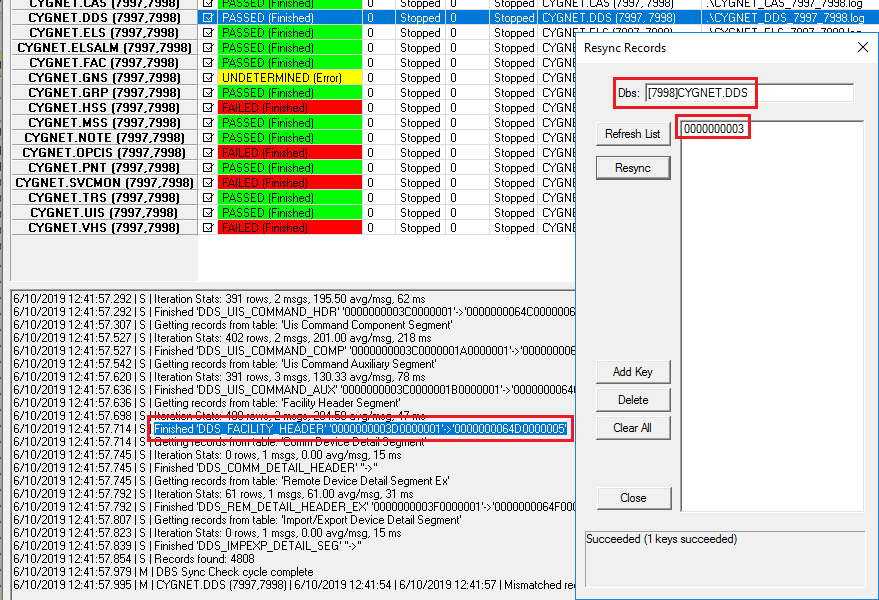
The properties on the Resync Records dialog box are described below.
| Option | Description |
|---|---|
|
Dbs |
The replicated service to resync records. |
|
Refresh List |
Refreshes the key list for the specified database. |
|
Resync |
Triggers the resynchronization of the database keys in the list. |
|
Add Key |
Allows users to manually enter a 10 digit database key to add to the list to be resynchronized. |
|
Delete |
Deletes the selected key from the resynchronization list. |
|
Clear All |
Clears all database keys from the list. |
|
Close |
Closes the Resync Records box. |
|
Results pane |
When the resynchronization is complete a success summary is listed in this pane. |

